
Admin users have the ability to create different user groups. User groups can be created to organize groups of users (i.e. a new hire group).
To create a user group from the admin mode, click on "My Company" located on the left hand side of the screen, then click on "Manage Users."

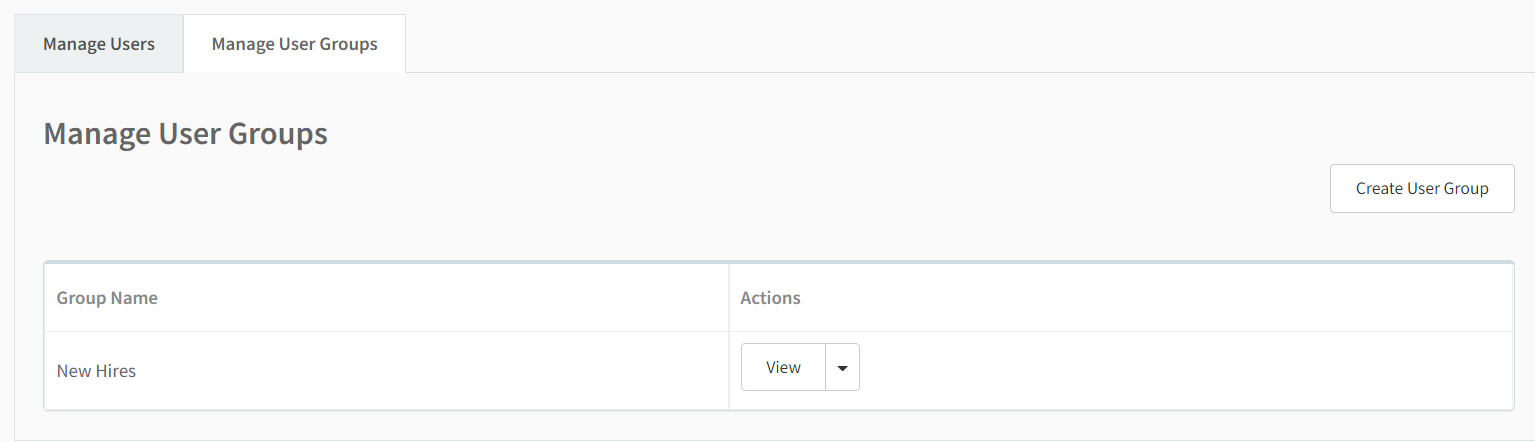
From the manage employees screen, click on the tab labeled "Manage User Groups." Then, click the "Create User" button on the right side of the screen.

Type in the name of choice for the group, assign users to that group by click the check box next to their name and then click the blue save button when finished.

After saving, you can navigate back to the Manage User Groups page to see your newly created group. You can add new users to these user groups by clicking "View".
Comments
0 comments
Article is closed for comments.