
Admins can view user details by navigating to "Manage Users" under the "My Company" tab on the admin dashboard.

The list of all users will be displayed. You can see admin status, user's name and email, date of last login, start date, and an actions column. Chose "View" to view the user's details.
The user's profile will be displayed.
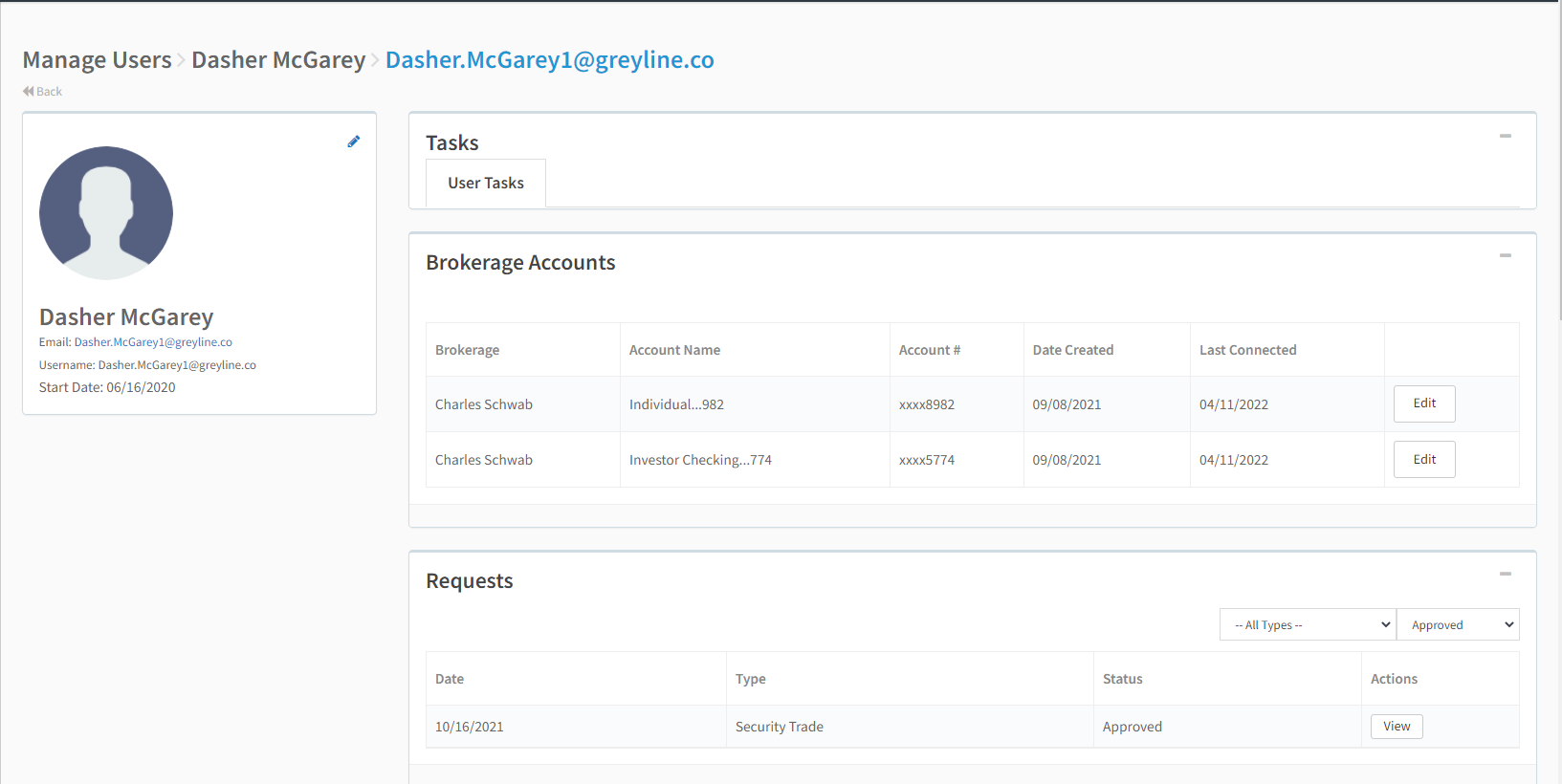
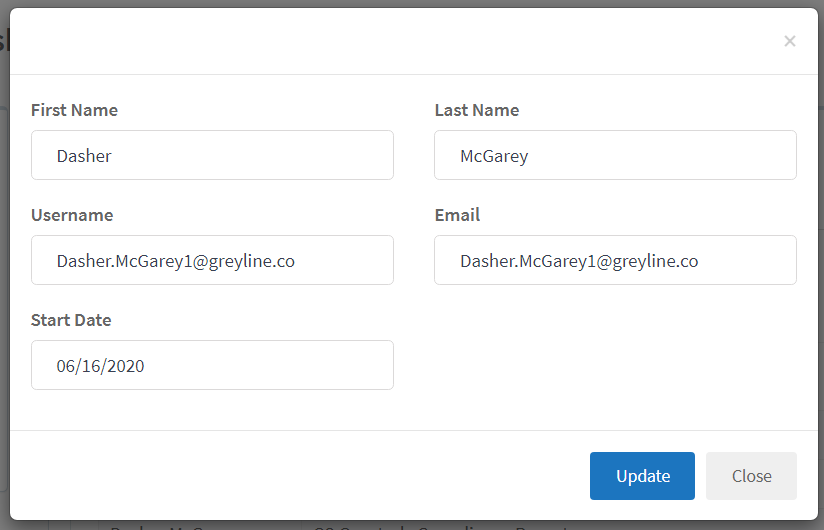
On the left, you can see the profile picture if one has been uploaded along with name, email, and the user's start date. Click the blue pencil icon to edit user details. You can edit the user name, username, email, and start date. Click "Update" when you are done making changes.
On the right, there are 8 boxes where you can view Tasks, Brokerage Accounts, Requests, Non Compliant Transactions, Certification Responses, Report Submissions, User Documents, and Notes. These boxes can be expanded or minimized by choosing the + or - icon.
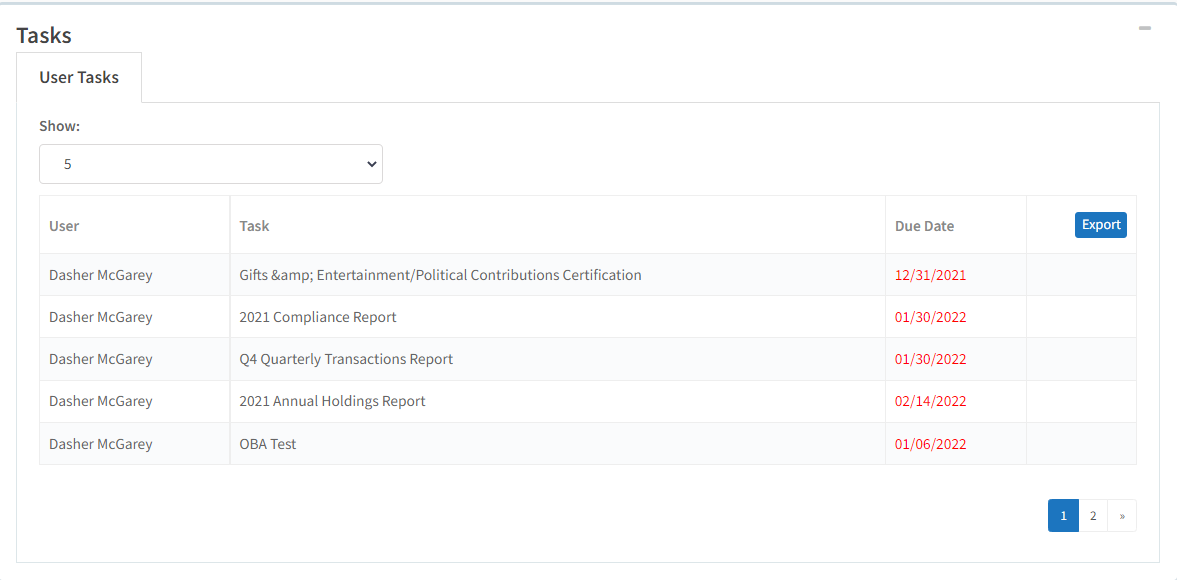
The "Tasks" box will list all Outstanding User Tasks and their corresponding due dates. Click the blue "Export" button to export the list of outstanding tasks.
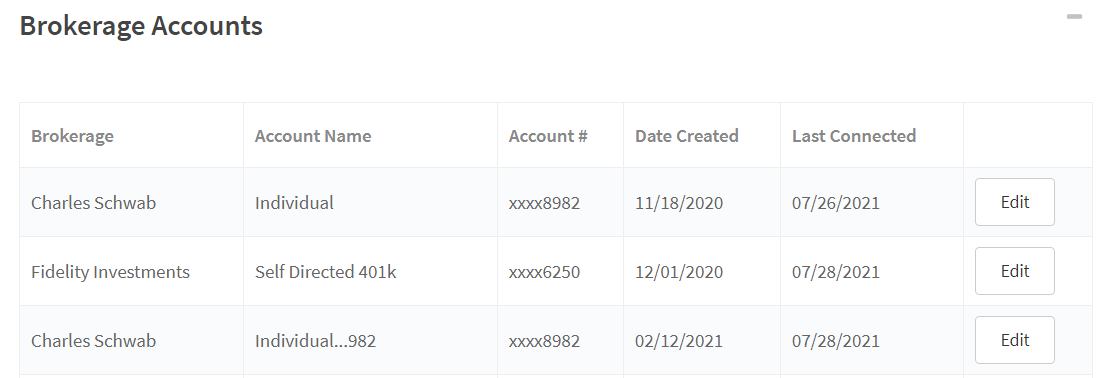
The "Brokerage Accounts" box lists all active brokerage accounts that are linked by that user. Brokerage Account details can be edited through this box by choosing "Edit."
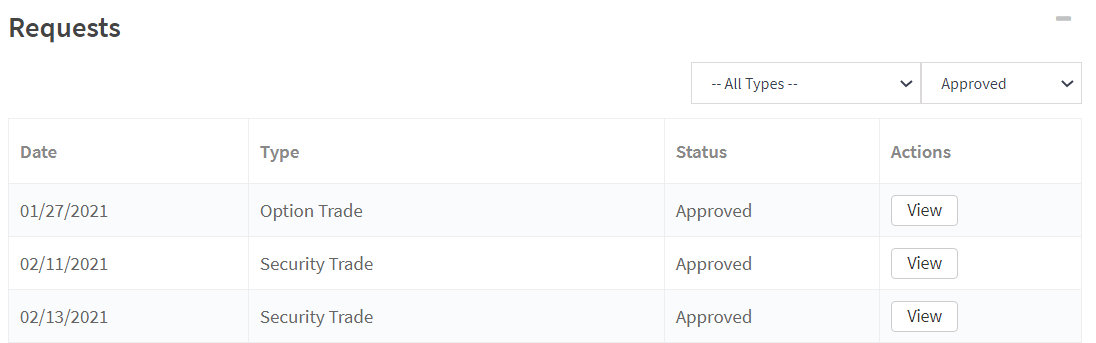
The "Requests" box will list all requests that have been submitted by that user. It is set to show requests that have been approved, but you can filter by type of request or approval status through the dropdowns. Click "View" to open the request in a new tab.
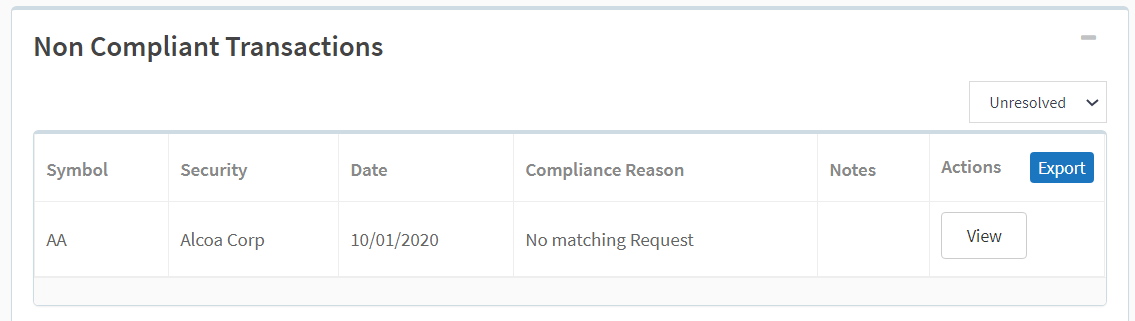
The "Non Compliant Transactions" box lists all non compliant transactions made by that user. It is set to show "Unresolved" transactions, but the list can be filtered through the dropdown. Click the blue "Export" button to export the list of transactions to CSV or click "View" to view the transaction details or update the compliance status.
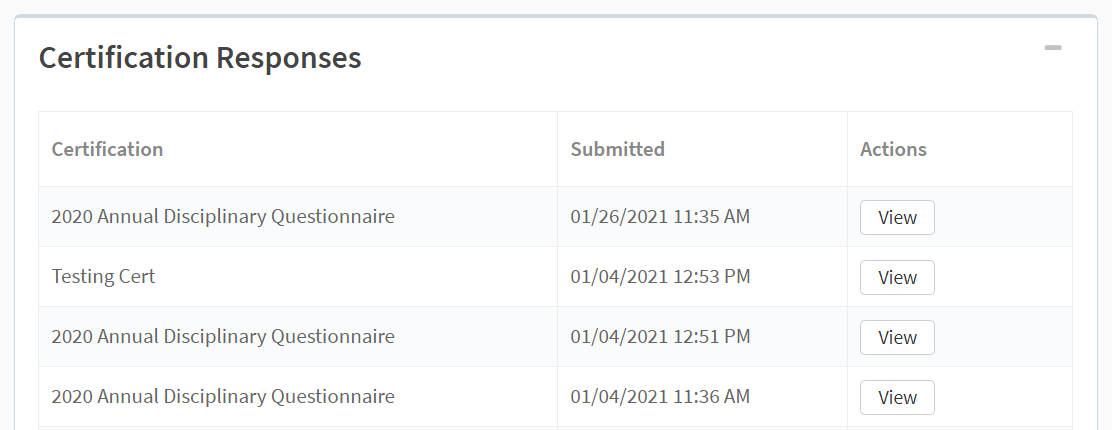
The "Certification Responses" box list all certifications that have been submitted by that user. The name of the certification and the date submitted are both listed. You can view the certification submission by choosing "View."
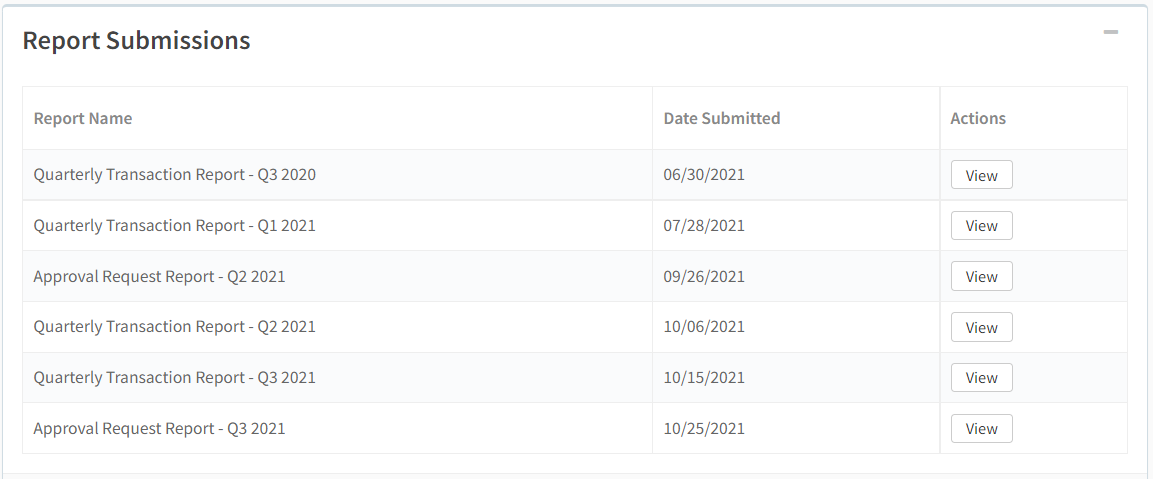
The "Report Submissions" box lists all the reports that have been submitted by that user. The name of the report and the date submitted are both listed. You can view the report submission by choosing "View."
The "User Documents" box lists all of the documents that have been added to the user's profile.

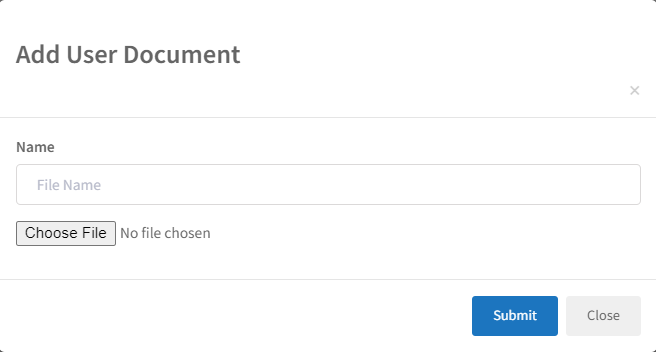
To add a document, click the "+" button on the right hand side of the box. You will need to enter a file name, upload a document and click submit.
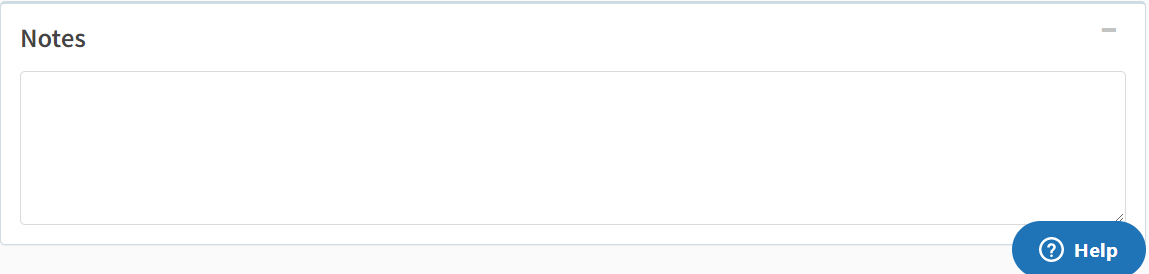
The "Notes" box will show you any notes that have been added to the user's profile by an admin user.
Comments
0 comments
Please sign in to leave a comment.